Showing posts with label java. Show all posts

Saturday, 16 August 2014

Life of an Employee


The following pic is developed by us to describe the condition of an Employee. Here, we have demonstrated it using a Java Program.
We've edited and updated the Quote by Great Scientist "Albert Einstein". Hope you'll like it.

The updated Quote:
"If Employees are good only because they fear punishment, and hope for reward, then we are a sorry lot indeed"


Life of an Employee - Techterabyte
Java Program to demonstrate Life of an Employee


Thursday, 27 February 2014

How-to-Start-Apache-Tomcat


This post is for beginners who want to run Apache Tomcat 7.0.40 (Jakarta Tomcat).
Follow these simple steps to set Environment Variable:


Thursday, 2 August 2012

CreateJarFileJava


How to create jar-file in java by following these 4 steps:


This post will explain you how to create jar file under java:
  • Jar file is java archive file.
  • In Java, we can combine all classes in  .jar ("java archive") file. 
  • You can create your own jar file by combining several classes.
  • After creating, you can run this project anywhere on just double-clicking your .jar file.

Follow the following steps:

  1. Go to your project folder in Bin:


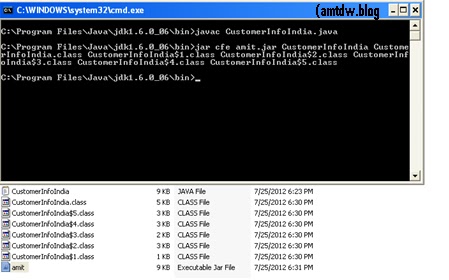
           2.     Compile your java program to create class file
                  (CustomeInfoIndia.java)


          3.   Note: If compilation is showing single class file then mention that single class file only.
                     If compilation is showing multiple class file then mention all the class files.


          Now, type what is being shown under (for multiple class file generation)
  
               c = create a JAR file
               f = this shows that the output will go to a file rather than to stdout
               amit.jar = name of jar file generated

 
          Below command will generate compressed JAR file placed at the same location.


       (above screenshot)
       You can see the number of class files generated after compilation and amit.jar
        file can also be seen here.


       4.       Just double-click on amit.jar file


               In this way you can create jar file in Java.


__________________________________________________________________________
Please comment and forward to others if you like this.
Other posts with video tutorial yet to come.....
"I am sure that blogs really help people around the world.
Let us follow this simple thinking of sharing knowledge . . ."



Sunday, 20 May 2012

Start programming in Java


Java is a desired skill for programmers. It is used for various applications, mobile phones, devices etc. I would like to begin with its introduction.
  •  Java is a programming language originally developed by James Gosling .
  •  It was released in 1995 
  •  The language derives its syntax from C and C++ .
Now, we will proceed further to run simple java program for beginners. For this, there are some prerequisites:

Softwares/Tools

  • Java( JDK 1.6 )
  • Text editor(notepad, notepad++ etc)

Steps

I am assuming that you installed java under C:\Program Files. Now follow these steps:
  •    Press the WINDOWS button on keyboard 
                    -> Run 
                    -> cmd

             Figure 1: Steps to reach java bin directory.


Java -  techterabyte.com
Java bin directory Location
  •  Create a Notepad file and save it as amtdwprogram.java. Always remember that the filename should have same name as the public class name in that file. This conveys  JVM (Java Virtual Machine) about the correct entry point.  Figure 2: our first program in java
Java -  techterabyte.com
amtdwprogram.java

 Here,

      class: new class is being defined.

       
      { }: curly braces in Java is identical to the way they are used in C, C++ etc
      
       public: access specifier
      
       static: allows main( ) to be called without having to instantiate a particular instance. 
      
       main: is the method called when a Java application begins.
      
       String arg[]: declares a parameter named arg, which is an array of instances of the class
       String.the array args[] receives any command-line arguments.
      
       System: it is a predefined class that provides access to the system
       
       out: it is the output stream that is connected to the console.
       
       println: displays the string which is passed to it.

    
     Note: All statements in Java end with a semicolon.

  •      Compiling the program (follow the full path->java->jdk->bin->): 
               C:\Program Files\Java\jdk1.6.0_06\bin>javac amtdwprogram.java 
               C:\Program Files\Java\jdk1.6.0_06\bin>java amtdwprogram

  •       Figure 3: Running the program:

Java -  techterabyte.com
OUTPUT


     This way you can run your first program in java.


__________________________________________________________________________
Please comment and forward to others if you like this.
Other posts with video tutorial yet to come.....
"I am sure that blogs really help people around the world.
Let us follow this simple thinking of sharing knowledge . . ."